Resigning
Resigning
You can define resigning an app package in order to install it on your physical device. This is usually for testing purposes when you don't have developer profiles setup on newer devices or newer macs. Maybe you're testing a CI/CD server where your physical iOS, iPadOS devices are connected and you want to quickly deploy a dirty build for testing purposes without the hassle of setting up provisioning and other certificate - private public key pair authentication and integrity checks done by apple for not running un-signed code / packages / applications on device.
Mind Map
Side Loading
First register the provisioning profile of the device you want to install the app on.
After that create a dummy xcode project and register the app identifier in order to make it easier to install the app for 365 days via enterprise route.
After that its easy peasy to just rename the ipa file with appropriate app identifier and install the app that way.
You have modded youtube, infuse and many more on your iOS device without the hassle of installing other tools to refresh every 7 days.
Also make sure you add your team ID to your default apps to override a unique string value for your bundle App ID.
Bundle ID and App ID
com.google.ios.youtube
com.firecore.infuse
com.christianselig.Apollo

// convert to
com.google.ios.youtube.SN256SDGA
com.firecore.infuse.SN256SDGA
com.christianselig.Apollo.SN256SDGA
Signing
Esign is a tool used for signing iPA apps with Apple Developer/Distribution certificates and installing them. iOS 18 - iOS 8 jailbreak FInder App
eSign github
Sideloadly
Do stuff on tvOS
Pairing with tvOS
Step 1. First things first, download the latest version of Xcode from Mac App Store and then install it on your Mac.

Step 2. On Apple TV, navigate to Settings > Remotes and Devices > Remote App and Devices and keep your Apple TV on this screen.

Step 3. On Mac, launch Xcode and then navigate to Window > Devices and Simulators from the menu bar on top.

Step 4. Now if both your Mac and Apple TV are nearby, the following message should show up on Xcode’s Devices and Simulators window.

Step 5. Click on “Pair with [Your Apple TV]” button.

Step 6. A verification code will pop up on Apple TV display, type it in Xcode to complete the pairing process between your Mac and Apple TV.

You should now have your Mac showing up on Apple TV’s Remote App and Devices screen. You should also have your Apple TV now showing up on Xcode’s Devices and Simulators window.

And that’s about it.

Your Apple TV should show up on the list of devices on Sideloadly :)
Errors
Mismatched Application Identifier Entitlement
Installation failed: 0 MismatchedApplicationIdentifierEntitlement (Upgrade's application-identifier entitlement string (SN88Q889J9.com.google.ios.youtube.SN88Q889J9) does not match installed application's application-identifier string (EQHXZ8M8AV.com.google.ios.youtube); rejecting upgrade.)

FAILED: 0: MismatchedApplicationIdentifierEntitlement (Upgrade's application-identifier entitlement string (SN88Q889J9.com.google.ios.youtube.SN88Q889J9) does not match installed application's application-identifier string (EQHXZ8M8AV.com.google.ios.youtube); rejecting upgrade.)

I think we should just retry!
If you're trying to install similar app with bundle identifier it would fail
Jailbreak or Tampering detection
If the app you want to sideload is trying to check if the phone has been jailbroken or has different signature or different bundle identifier, just enable injection tweaks on sideloadly
Open: sideloadly_sideload_spoofer.png
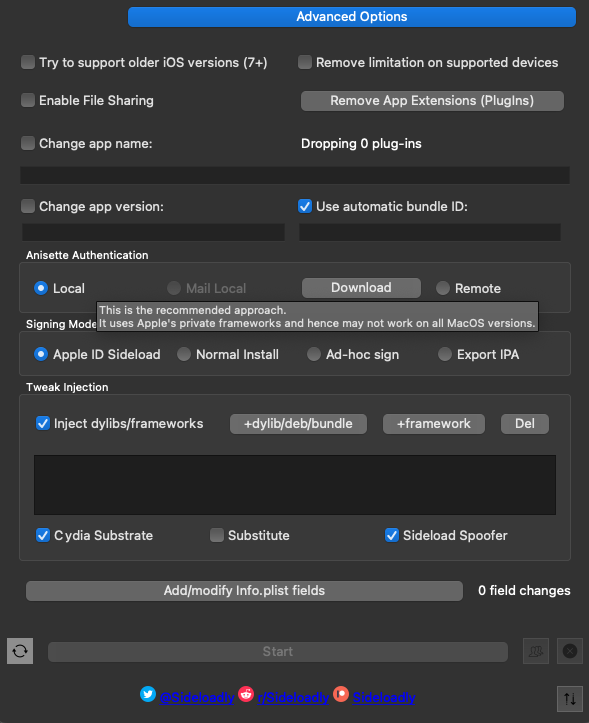
Some apps like infuse won't work and show blank screens when you enable tweak injection to bypass detecting jailbreak.
Don't know what's wrong with it.
Install failed: Guru Meditation
ERROR: Guru Meditation 7c026a@447:14dd8f ('expected 1, found 0', ArrayError('expected 45, found 44', ArrayError('expected 3, found 1', SwitchError('no default case defined'))))
Install failed: Guru Meditation 7c026a@447:14dd8f ('expected 1, found 0', ArrayError('expected 45, found 44', ArrayError('expected 3, found 1', SwitchError('no default case defined'))))
Just use a different iOS iPA file to install
ApplicationVerificationFailed
There was an issue during installation: 3892346881: ApplicationVerificationFailed (Failed to verify code signature of /var/installd/Library/Caches/com.apple.mobile.installd.staging/temp.tOBasF/extracted/Payload/Apollo.app : 0xe8008001 (An unknown error has occurred.))
App ID with Identifier not available
Install failed: Guru Meditation 0db732@934:3aea77 Failed: (9401) An App ID with Identifier 'com.firecore.infuse2' is not available. Please enter a different string
Just used different ID
Automatic Resigning 7 days Free account
There are so many guides to use to sign your apps with respect to apple account and running signed code on your physical device.
One of the methods include using shortcuts
Guide referenced from reddit post
THE GUIDE
Open the Shortcuts app (preinstalled on all devices)
Tap the “Automation” tab at the bottom, and tap “Create Personal Automation”
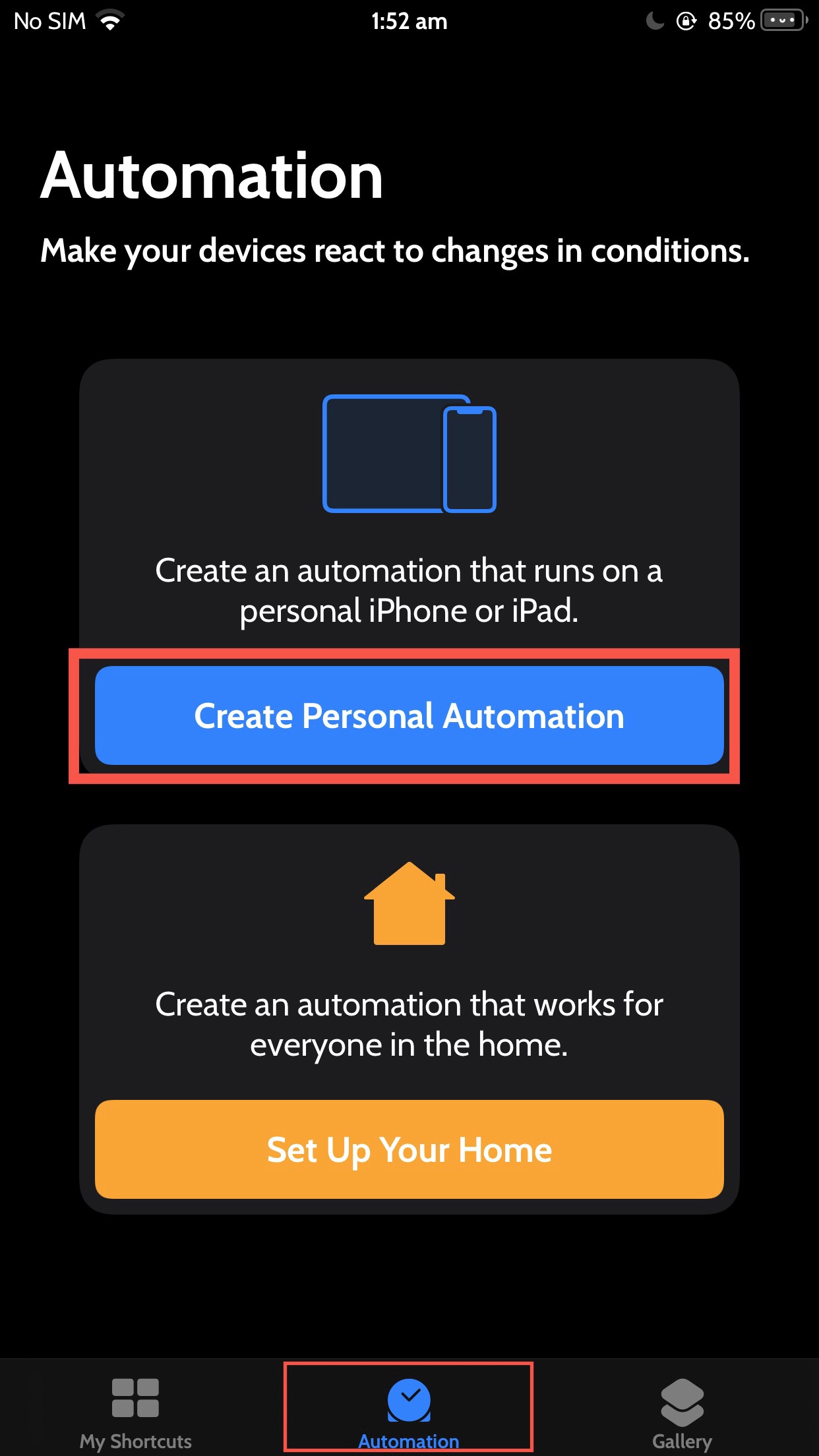

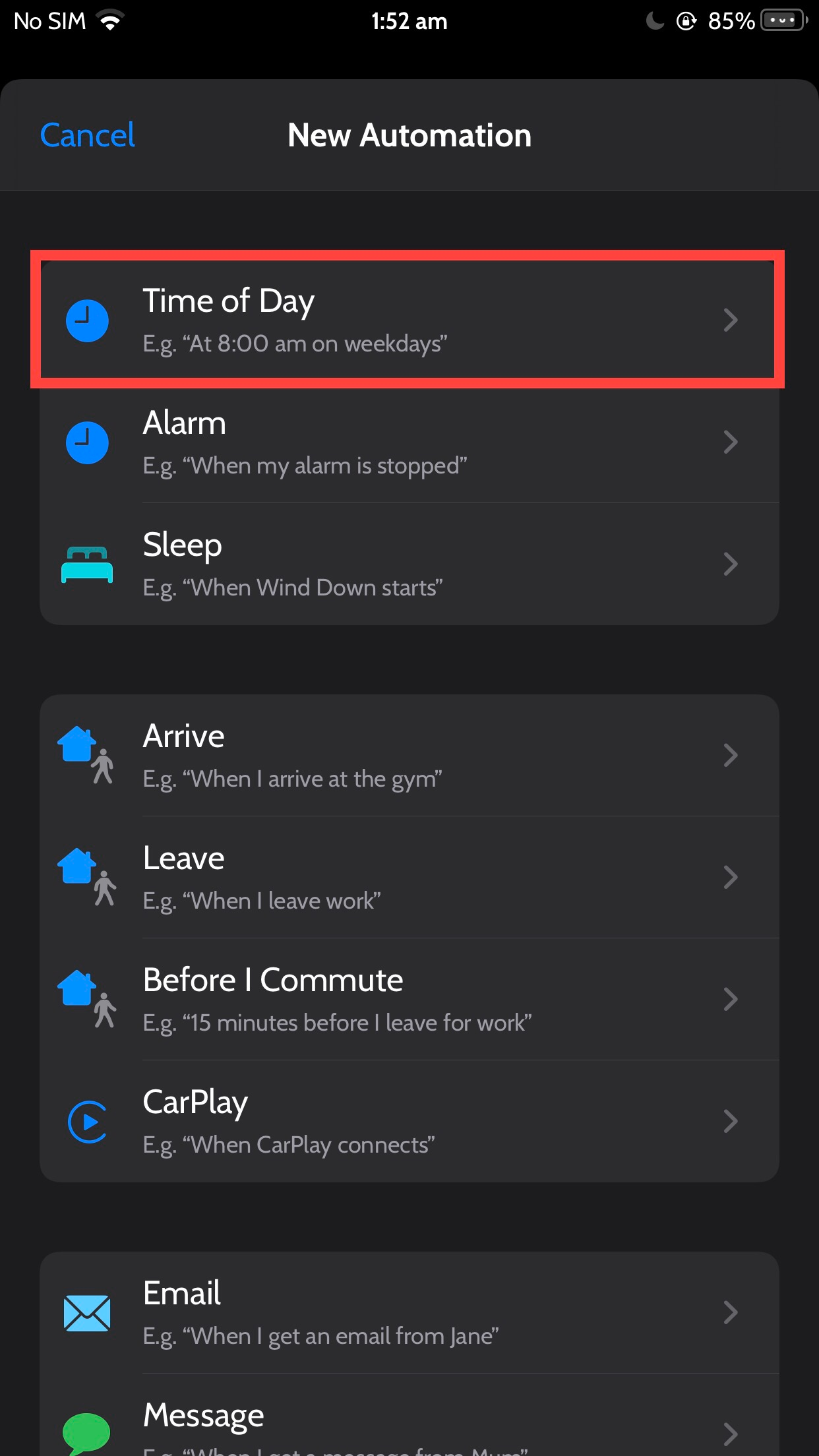
Tap “Time of Day”
Open: Pasted image 20231004103449.png
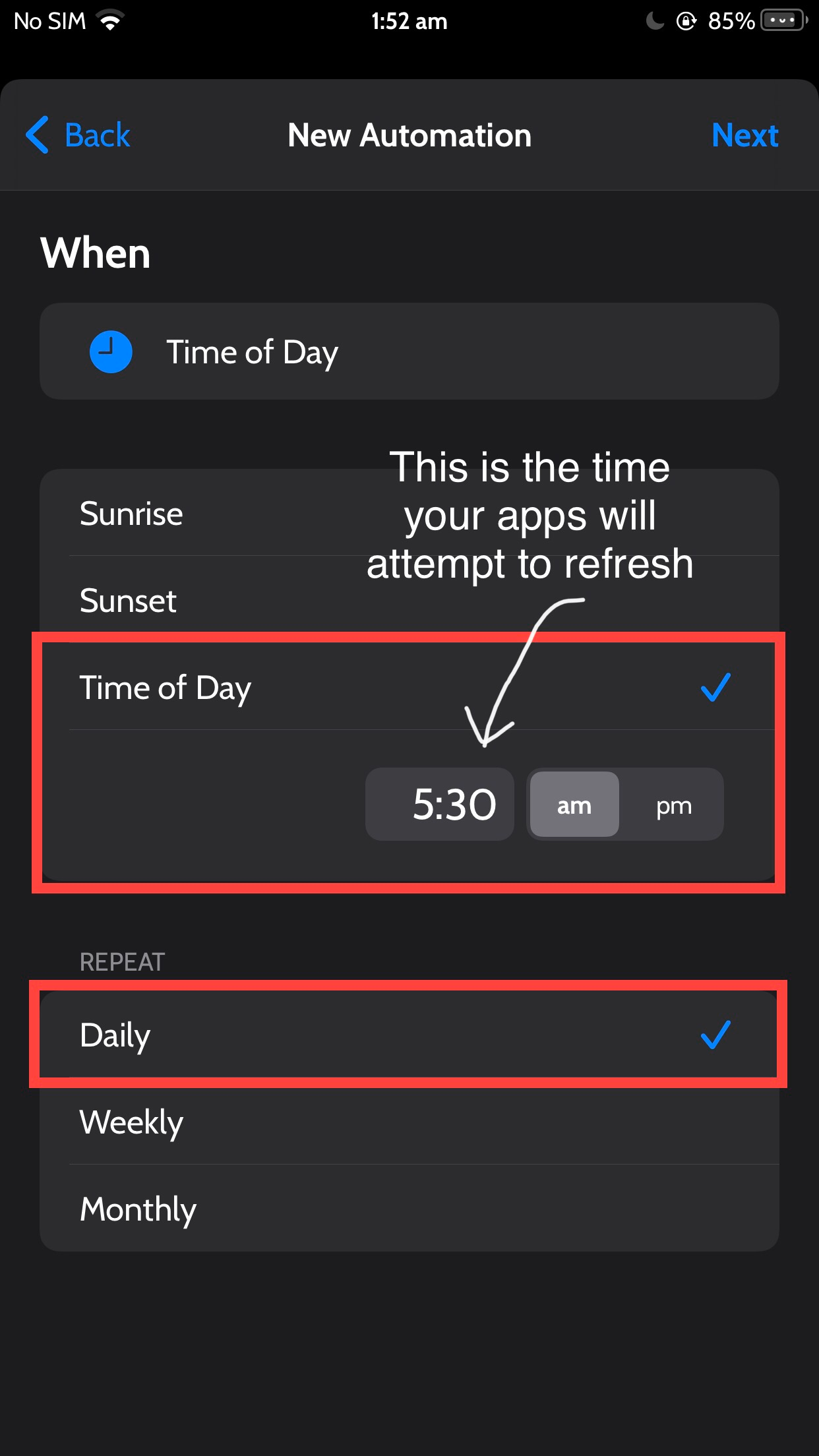
Set the time of day for your apps to refresh (For the purposes of this guide, I will use 5:30AM, but you may find that a different time works better for you), and MAKE SURE “Repeat” is set to Daily
Open: Pasted image 20231004103621.png
Tap Next.
Tap “Add Action” Open: Pasted image 20231004103652.png
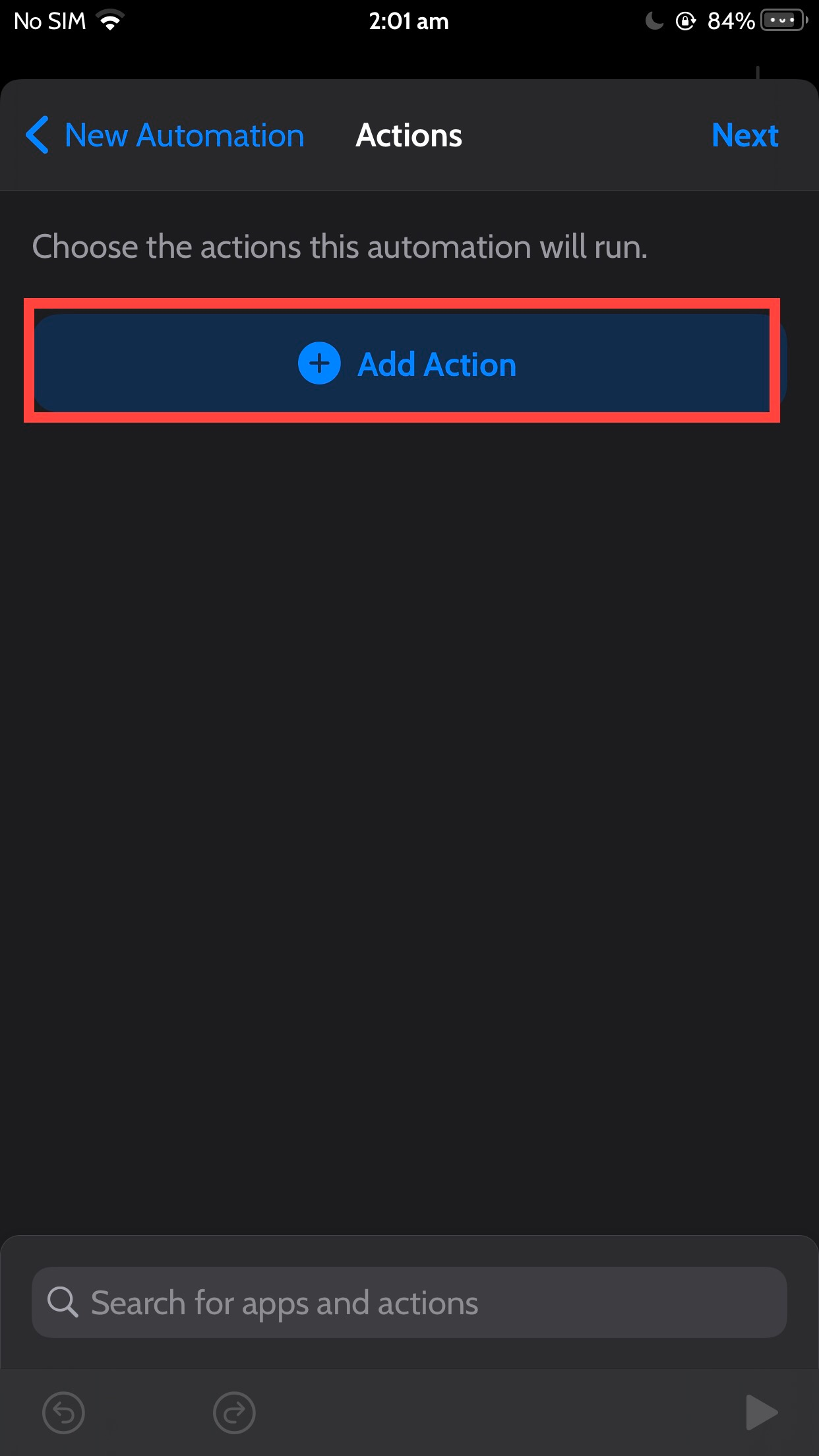
Search “Refresh”, then tap the action titled “Refresh All Apps” with the AltStore app icon.

Tap Next
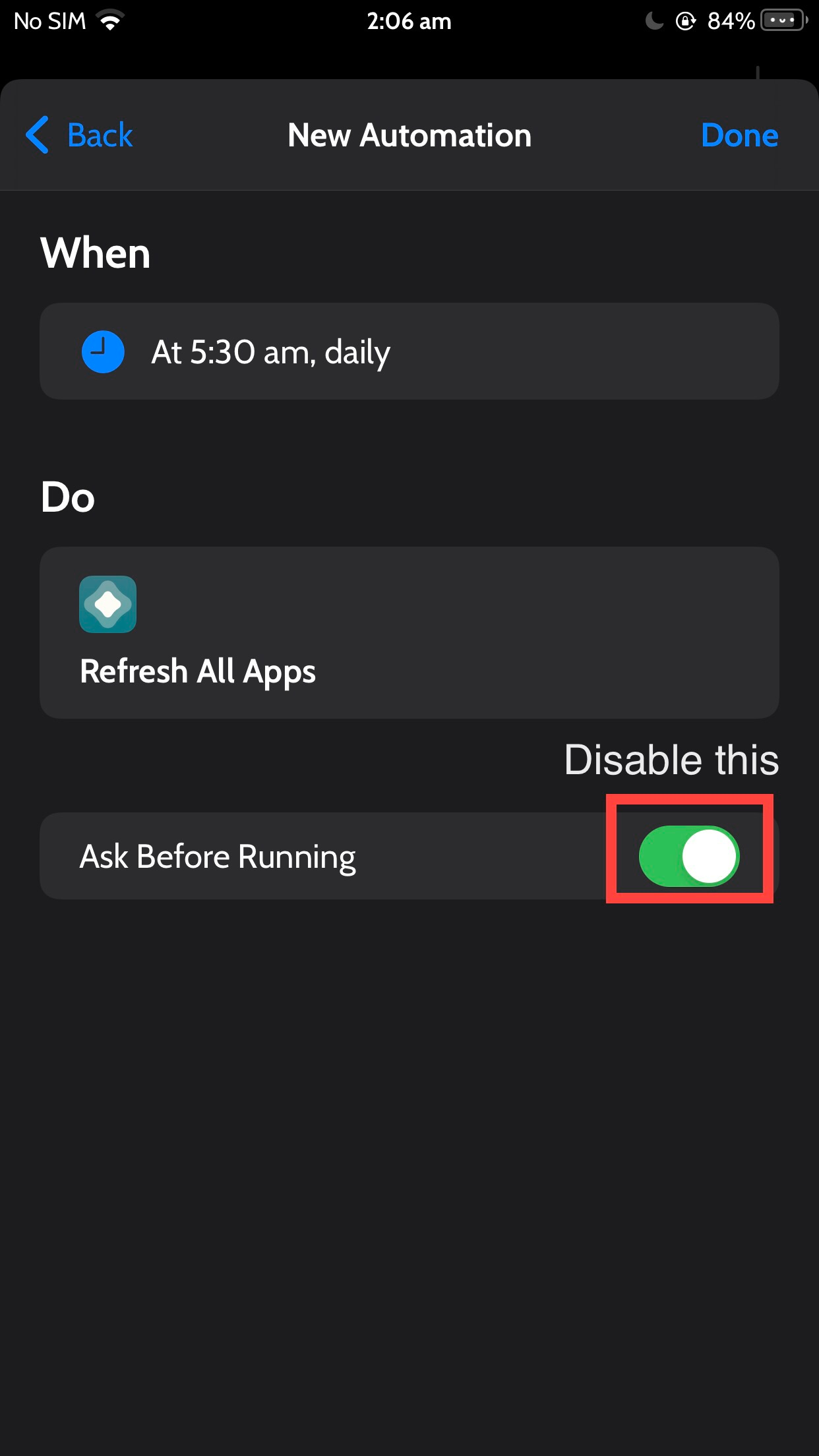
DISABLE the “Ask Before Running” toggle Open: Pasted image 20231004103716.png
Tap “Don’t Ask”! Open: Pasted image 20231004103751.png
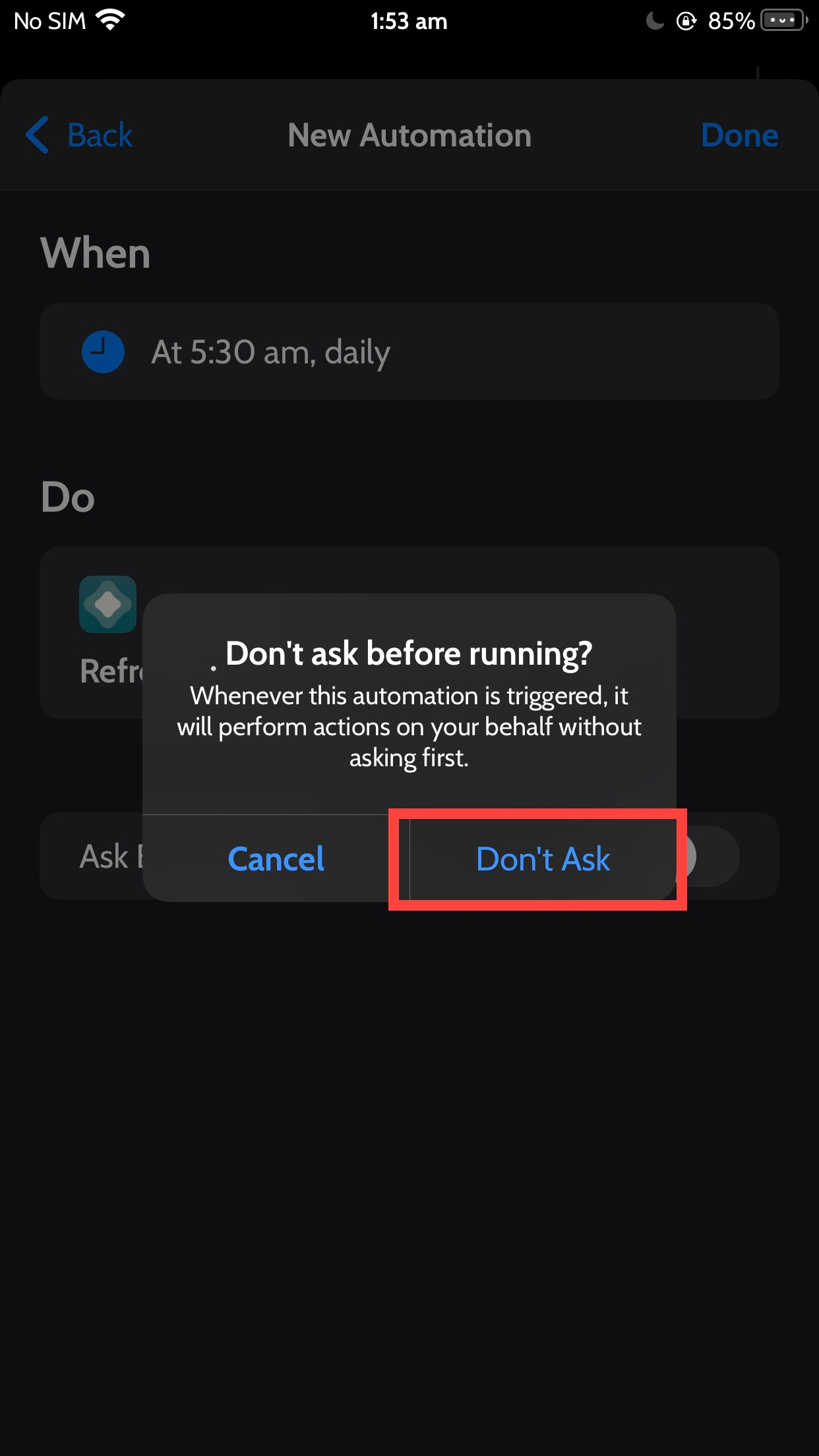
Tap Done
Profit
Community Instructions
SourceiOSGods
// Start
PC Installation Instructions:
STEP 1: If necessary, uninstall the app if you have it installed on your iDevice. Some hacked IPAs will install as a duplicate app. Make sure to back it up so you don't lose your progress.
STEP 2: Download the pre-hacked .IPA file from the link above to your computer. To download from the iOSGods App, see this tutorial topic.
STEP 3: Download Sideloadly and install it on your PC.
STEP 4: Open/Run Sideloadly on your computer, connect your iOS Device, and wait until your device name shows up.
STEP 5: Once your iDevice appears, drag the modded .IPA file you downloaded and drop it inside the Sideloadly application.
STEP 6: You will now have to enter your iTunes/Apple ID email login, press "Start" & then you will be asked to enter your password. Go ahead and enter the required information.
STEP 7: Wait for Sideloadly to finish sideloading/installing the hacked IPA. If there are issues during installation, please read the note below.
STEP 8: Once the installation is complete and you see the app on your Home Screen, you will need to go to Settings -> General -> Profiles/VPN & Device Management. Once there, tap on the email you entered from step 6, and then tap on 'Trust email@iosgods.com'.
STEP 9: Now go to your Home Screen and open the newly installed app and everything should work fine. You may need to follow further per app instructions inside the hack's popup in-game.
NOTE: iOS/iPadOS 16 and later, you must enable Developer Mode. For free Apple Developer accounts, you will need to repeat this process every 7 days. Jailbroken iDevices can also use Sideloadly/Filza/IPA Installer to normally install the IPA with AppSync. If you have any questions or problems, read our Sideloadly FAQ section of the topic and if you don't find a solution, please post your issue down below and we'll do our best to help! If the hack does work for you, post your feedback below and help out other fellow members that are encountering issues.
// End
macOS
Installing IPAs on Apple Silicon (M1)
visionOS
Developer Mode
- Setup developer mode and connect the AVP to Xcode over Wi-Fi. Instructions for this are on the Apple developer website
- Create a shell project in Xcode and build the app for your AVP. Ensure that it runs properly
- Download IOS App Signer 2 and the .ipa file of the app you want to sideload. CustomApp can be downloaded from its Github. Using your developer team and the bundle identifier that was created from the shell project, build a signed ipa file.
- On the devices and simulators page in Xcode, select your AVP and drag the outputted ipa file to the installed app list
- Trust the profile in device management settings on the AVP
- Done!
Keychain Access
macOS quirks
SO | Xcode codesign wants to use the "Apple Development" keychain password wrong
Force quitting keychain access also fixed this issue for me.
Libraries version mismatch
Checking private key
Generating keypair
ERROR: Guru Meditation da8d42@156:ad7080 Libraries version mismatch, please reinstall Sideloadly!
Install failed: Guru Meditation da8d42@156:ad7080 Libraries version mismatch, please reinstall Sideloadly!
Just a reinstall worked fine for me on Sideloadly.